

SpringMicroHost Yellow Page Helper
Log in to GitHub as springmicrohost1. You'll use this GitHub account to log in
to these two sites:
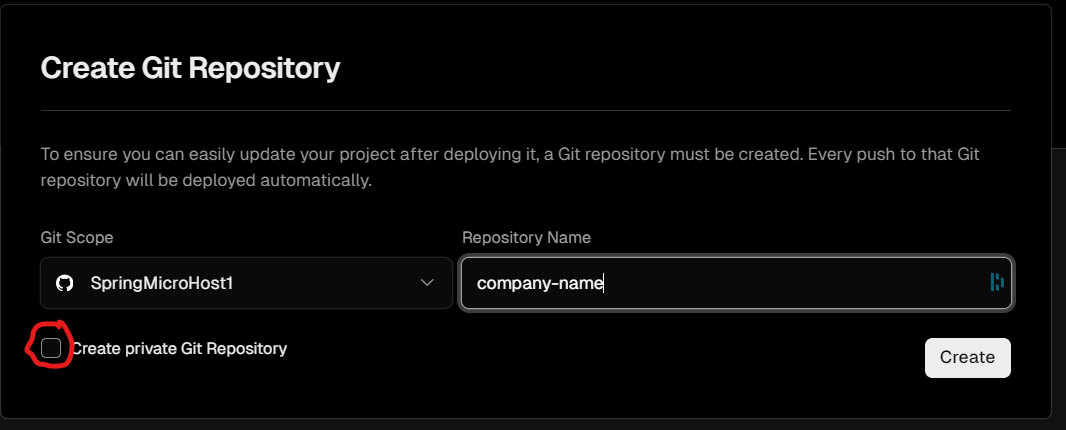
To deploy the eCommerce template to Vercel and get the site on GitHub, Click Here. Name the repository and uncheck the "Create private Git Repository" box so StackBlitz can access the code when you edit later.
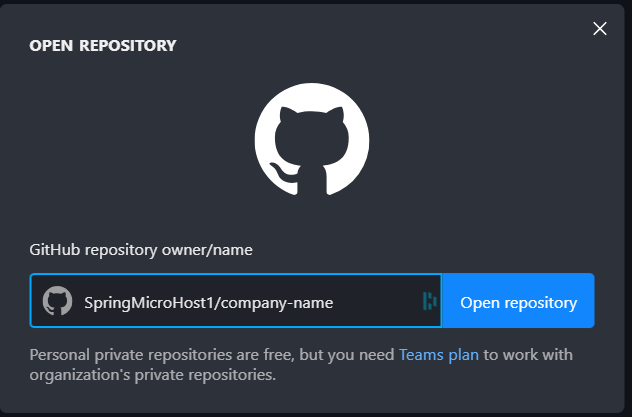
Visit https://stackblitz.com/ and select "Open GitHub Repository". Then search for the repository you just
made ()springmicrohost/company-name, where company-name is whatever you picked).

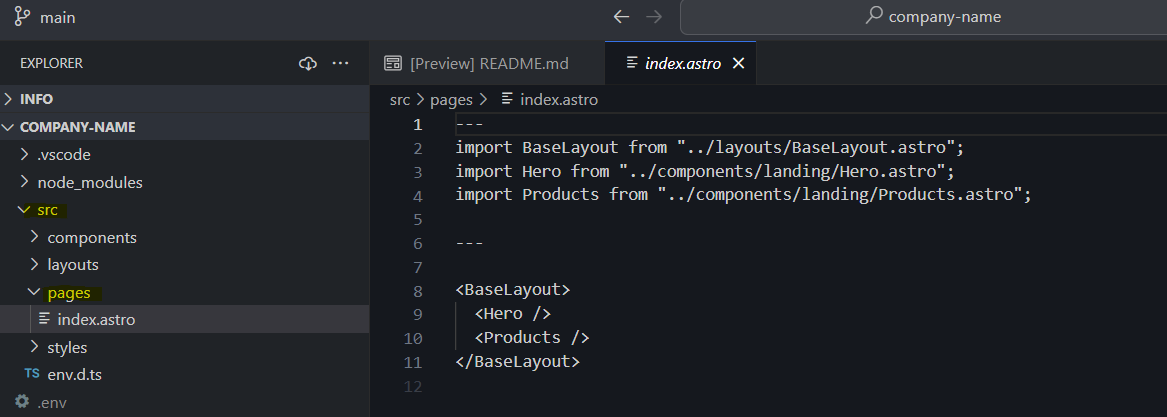
The src folder is where the code is. The pages folder is where the pages are, and index.astro is the home page. In this example, the page is made up of components called Hero and Products. Those are located in the components folder.
Open src/components/landing/Hero.astro. Find the title text and change it to have whatever. Ctrl+S to save and see your changes in the preview whenever you make a change.
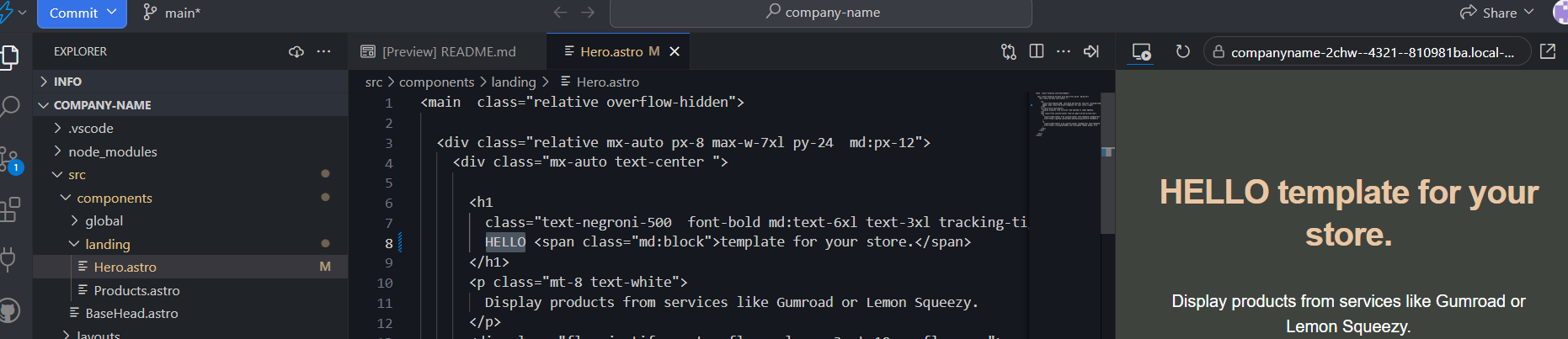
Open src/components/landing/Products.astro. Find an <img> tag and change the src= to have a different image link.
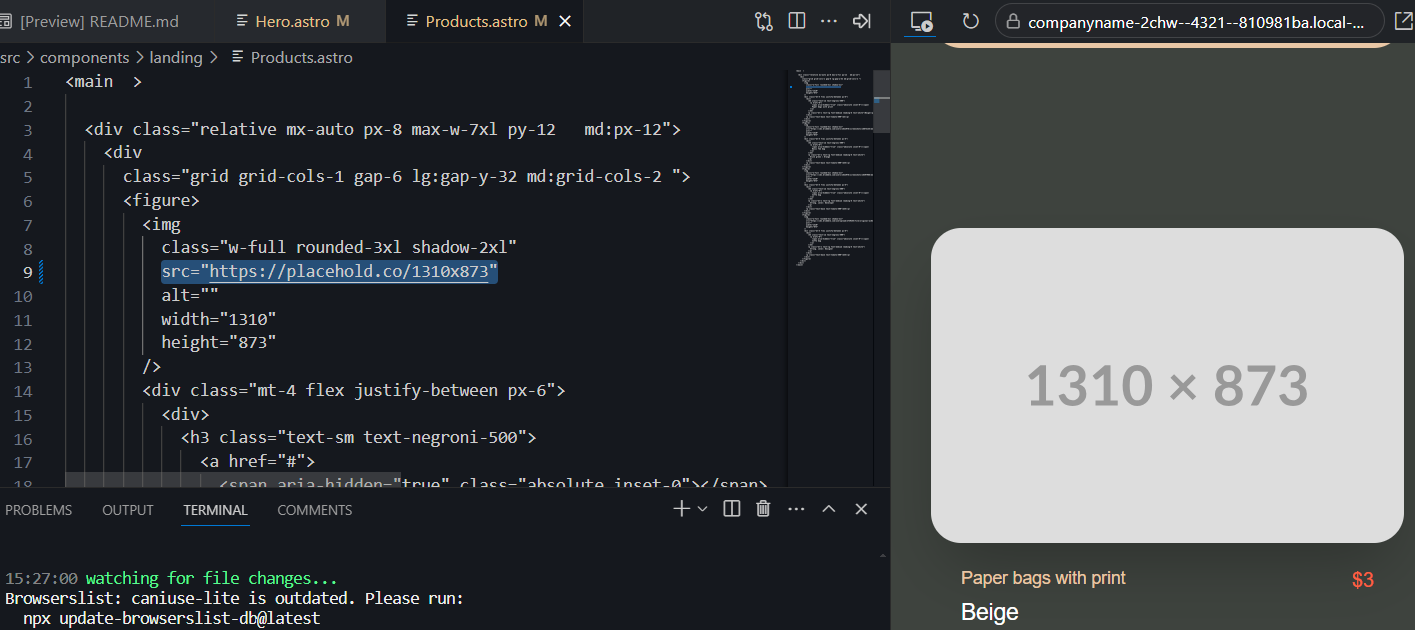
All style in the project is done with Tailwind CSS. Check out that site for examples on fonts, colors, etc.
Example ChatGPT Prompt
You can use ChatGPT to spit out Tailwind style with HTML content.
prompt
"Welcome to my website" centered text blue using tailwind.
output
<div class="flex justify-center items-center h-screen">
  <h1 class="text-blue-500 text-center text-4xl">Welcome to my website</h1>
</div>
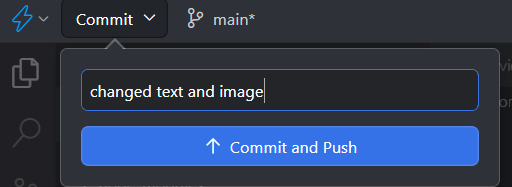
To save the project in StackBlitz and have it deploy to Vercel, select the Commit button in the top left, put a save message to identify your changes, and then Commit and Push.
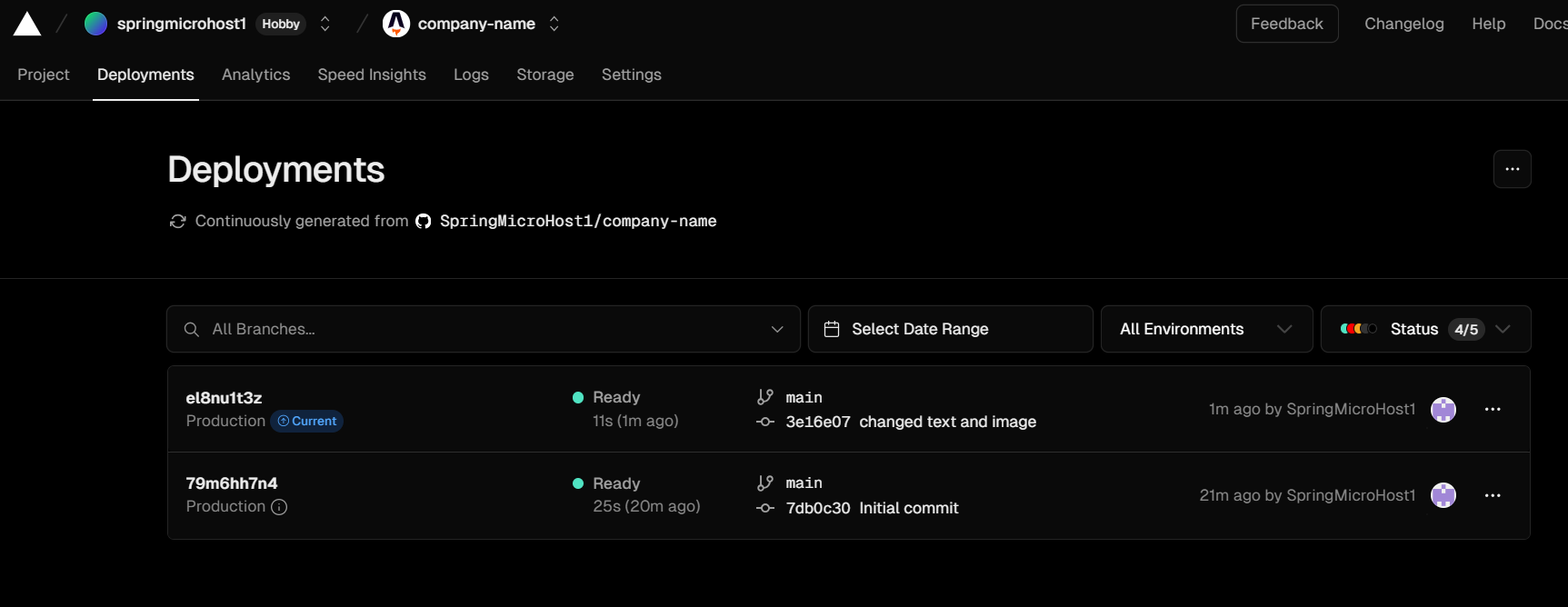
In Vercel, navigate to the project (whatever company-name is for you) and find the Deployments tab. You can see the most recent deployments and commit messages.
On the Project tab in Vercel, you can see the domains.